A few days ago, we shared a complete MicroDuck workflow that combines cloud simulation, on-device motion control, and BPU-powered vision. Many community members asked the same question:
Can you provide a ready-to-use environment? I don’t want to configure MuJoCo, the models, and the web services one layer at a time.
Now we can. Qiaolong has packaged the entire environment as a RoboGo development-machine image named microduck-cloud-sim. Create a development machine, expose port 8080, and you can control the duck directly from your browser. If you have an RDK X5, you can also connect it for on-device motion control and BPU vision.
Image: microduck-cloud-sim on the RoboGo Asset Marketplace
Project overview: Build Your Own Microduck with RDK X5
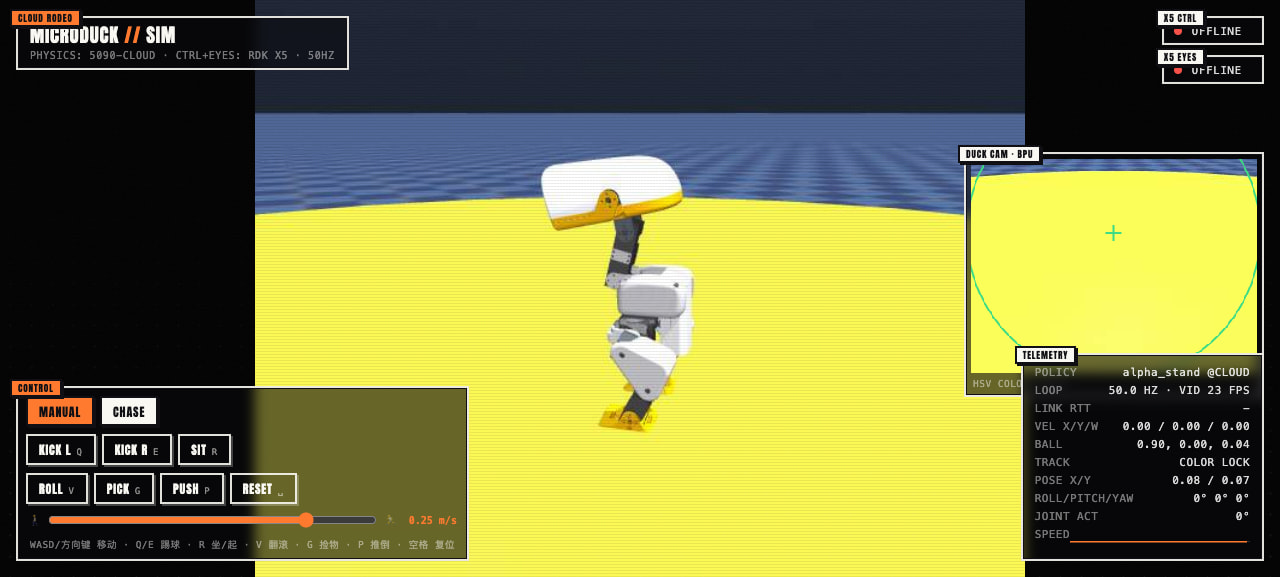
What’s Included
- MicroDuck physics simulation in MuJoCo, running in the cloud with the official ONNX reinforcement-learning policy
- A browser-based cockpit with a third-person view, a duck’s-eye camera view, and real-time telemetry
- Walking, adjustable speed, turning, ball kicking, sitting and standing, forward rolls, picking up objects with the beak, and automatic recovery after a fall
- A local fallback mode that works without a development board
- An RDK X5 motion-control interface and a BPU-based visual ball-chasing mode
The browser sends commands and displays the scene, while the cloud handles simulation and rendering. Once an RDK X5 is connected, the board can run the duck’s control and vision programs, with the cloud page continuing to serve as the live cockpit.
1. Create a Development Machine from the Image
Open the image page above and click Quick Start, or select microduck-cloud-sim when creating a development machine.
Recommended configuration:
- One NVIDIA GPU; we recommend
dsp-24c192g-5090_32g-x1 - At least 100 GB of system-disk space
- Add port
8080to the public web application settings and set the path to/ - Enter a development-machine name and your SSH public key as prompted
When the development machine reaches the Running state, click Web App on its card to obtain the public URL.
2. Start and Verify the Simulation
The image’s working directory is /root/microduck_sim/. Open a terminal on the development machine and run:
cd /root/microduck_sim
./restart.sh
Check the service:
curl -s http://localhost:8080/healthz
If the response contains "ok": true, the service is running normally. Open the Web App URL to enter the cockpit.
The image includes a local fallback simulator, so you do not need to connect an RDK X5 for your first test. If the page does not appear, or if the service was stopped manually, run ./restart.sh again.
3. Control MicroDuck in Your Browser
| Control | Action |
|---|---|
W / S |
Move forward / backward |
A / D |
Turn left / right |
Q / E |
Kick with the left / right foot |
R |
Sit / stand |
V |
Forward roll |
G |
Pick up an object with the beak |
P |
Push the duck over to test automatic recovery |
| Spacebar | Reset |
| Speed slider | Adjust between walking and running speeds |
Manual / Chase |
Manual control / visual ball chasing |
On a phone, the same page displays two virtual joysticks for touch control.
4. Connect an RDK X5
If you have an RDK X5 with duck_sim_brain.py, duck_vision.py, and the corresponding policy files already installed, run the following commands on the board:
cd /root/duck_brain

python3 duck_sim_brain.py \
  wss://<RoboGo-Web-public-domain>/board

python3 duck_vision.py \
  wss://<the-same-public-domain>/vision
Once the board connects, the page switches to on-device motion-control mode. Enable Chase mode and the RDK X5 will run BPU object detection on the duck’s first-person camera feed, then use the detections to control its pursuit of the ball. If the board disconnects, the service automatically falls back to the cloud-local mode.
The most interesting part is not simply seeing the duck move, but observing the complete data loop:
Browser commands / camera frames
              ↓
RoboGo cloud simulation and rendering
              ↕ WebSocket
RDK X5 motion control + BPU vision
              ↓
Robot state and actions returned to the cockpit
Troubleshooting
The web page won’t open
Check that port 8080 is exposed in the development-machine settings and that the path is set to /.
The display is black or the simulation is frozen
First run curl -s http://localhost:8080/healthz. If the service is unhealthy, go to /root/microduck_sim/ and run ./restart.sh.
Chase mode cannot detect the ball
Make sure the orange ball is visible in the duck’s first-person view. Press the spacebar to reset the scene and place the ball back in front of the duck.
The RDK X5 connection drops
Verify that both wss:// addresses use the current development machine’s public web domain. A board disconnect will not bring down the page; the cloud service will fall back to local mode.
Next Step: Train Your Own MicroDuck Policy
The microduck-cloud-sim image is designed for quickly exploring the available motions, the web cockpit, and the RDK X5 control loop. If you want to move from running the duck to training your own policy, use the following RoboGo image:
Training image: microduck-rl-training-web-v1 on the RoboGo Asset Marketplace
- Includes nine official pretrained policies that you can control and switch between in real time from the browser
- Supports GPU-based PPO training, velocity-tracking comparison tasks, and checkpoint management
- Correctly exports checkpoints to ONNX with the observation normalizer included
- Lets you replace, test, and compare your own trained models directly in the browser
The two images serve different purposes. microduck-cloud-sim focuses on quick experimentation and the closed loop with RDK X5. microduck-rl-training-web-v1 focuses on reinforcement-learning training and model replacement. The training image has been validated end to end on a newly created development machine, including official-policy control, a PPO smoke test, and the complete checkpoint-to-ONNX-to-web workflow.
Where to Go from Here
This image is a quick way to get the full experience running before you examine each layer: web control, the reinforcement-learning policy, the on-device loop, and BPU vision.
Take the duck for a spin in your browser, then connect an RDK X5 and give it a real edge-AI brain. If you use this image to create a new motion, perception capability, or interaction, share your work in the forum.
This project is built on the open-source MicroDuck project from Pollen Robotics. The image and RDK X5 integration were contributed by qiaolongli.